
LET’S AIM TO BE MORE PRODUCTIVE
DAY BY DAY.
WHAT IS TOP TRACKER?

TopTracker is a lightweight application that helps you keep track of how you spend your time.
Please go to the link and download the Top Tracker Application.
STEPS TO FOLLOW IN SETTING UP THE TOPTRACKER IN VIRTUAL PROFESSIONALS:
STEP 1:
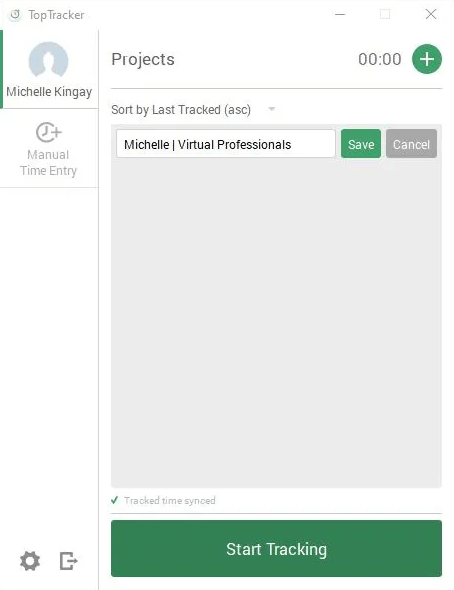
Open the Top Tracker application in your device and sign in using the given login credentials and the project name. Sample project name, *First Name | Virtual Professionals.
STEP 2:
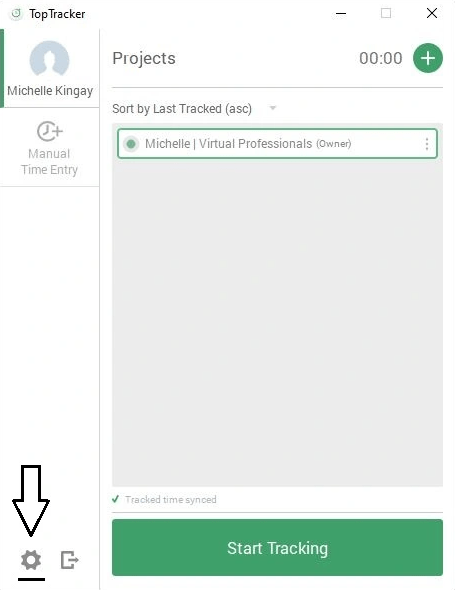
Click preferences icon beside sign out.
STEP 3:
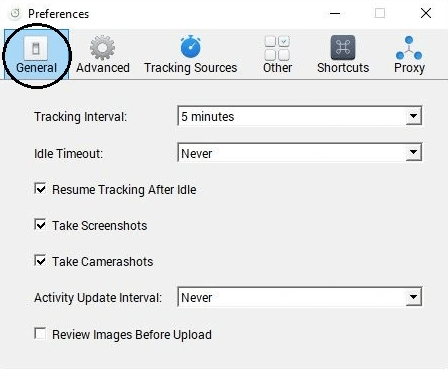
After clicking the preferences icon, you will see the icons for General, Advanced, Tracking Sources, Proxy, Other, and Shortcut.

STEP 4:
Click the icon for General and change the settings. Put 5 minutes for the Tracking interval and never for the Idle Timeout. Check resume tracking after idle and check take screenshots. For the activity update interval, choose never.
STEP 5:
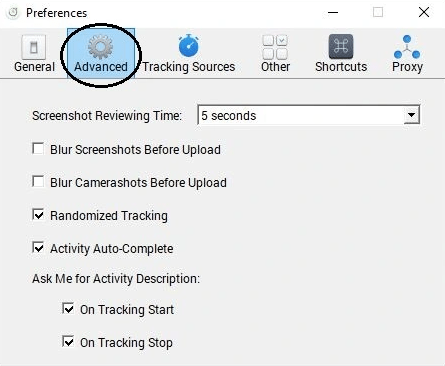
Click the icon for Advance and change the settings. For the screenshot reviewing time, put 5 seconds. Put a check to randomized tracking and activity auto complete.
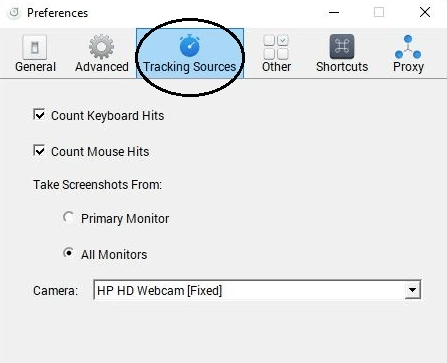
STEP 6:
Click the icon for Tracking Sources and change the settings. Put a check to Count keyboard hits and Count mouse hits. Take screenshots from ALL MONITOR and for the camera, it depends on the available camera in your device.
STEP 7:
Click the icon for others. Check Play Sounds and Open at Login.

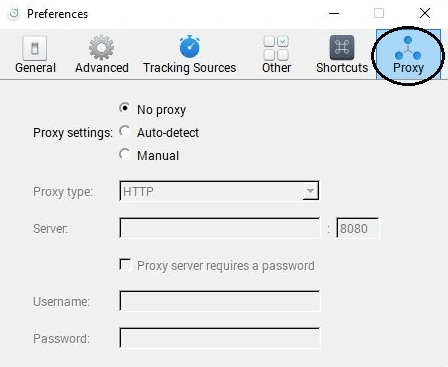
STEP 8:
Lastly, click the icon for the Proxy and click only “no proxy”.
STEPS ON HOW TO CHECK TOP TRACKER UPDATES:
STEP 1:
On the lower right corner of your screen, look for the Top Tracker icon and hit click.

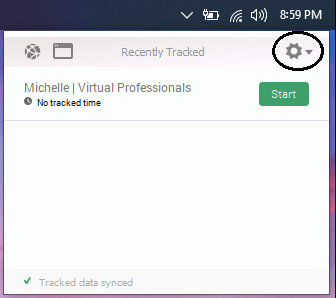
STEP 2:
After clicking the icon, click setting.
STEP 3:
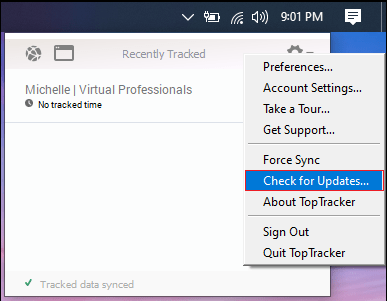
In settings, click “Check for updates”. And if it’s outdated make sure to update the Top Tracker.
STEPS HOW TO SET UP YOUR DEVICE FOR WORK:
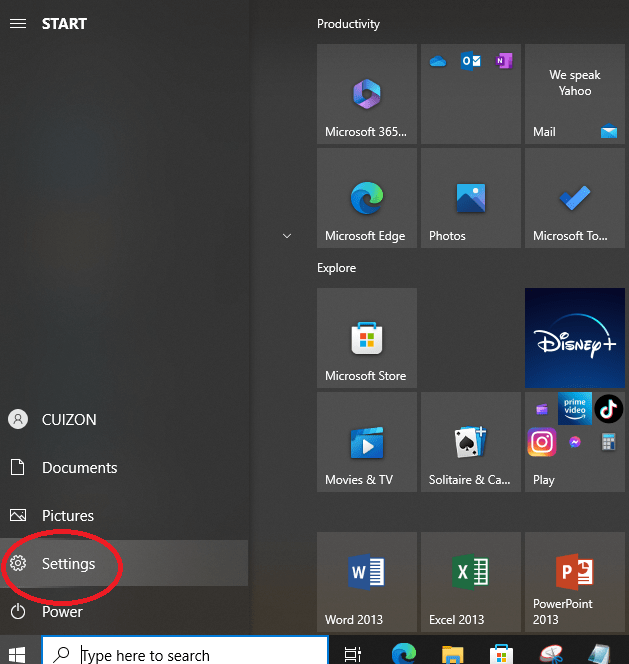
STEP 1:
Open Power Options in the control Panel. In Windows 10, you can get there from right clicking on the start menu and going to power options or click the settings.
STEP 2:
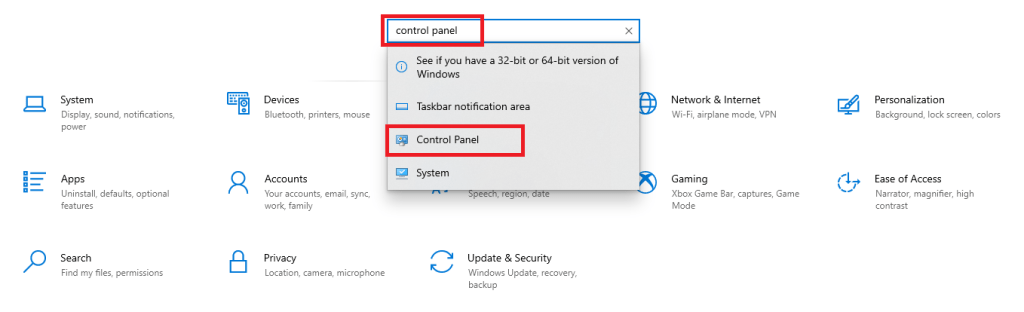
To change the setting manually, first go to settings and search for “Control Panel” and click it.
STEP 3:
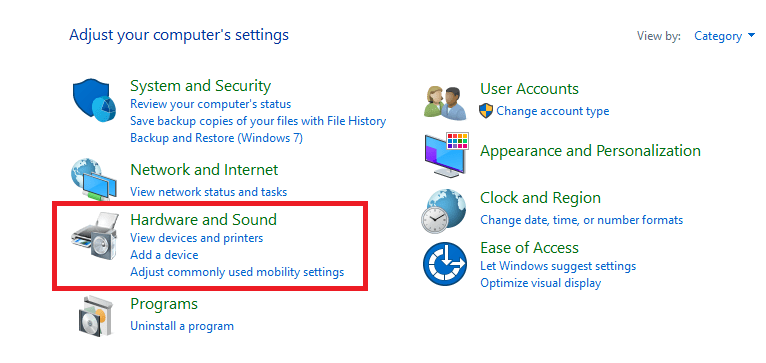
Inside control panel, click “Hardware and sound”.
STEP 4:
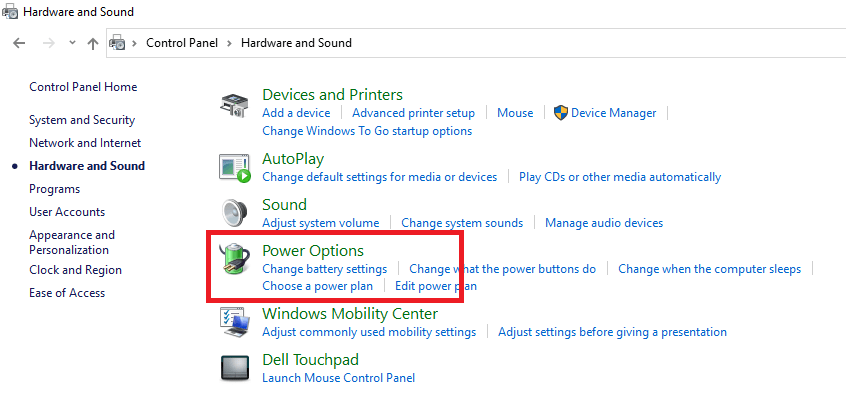
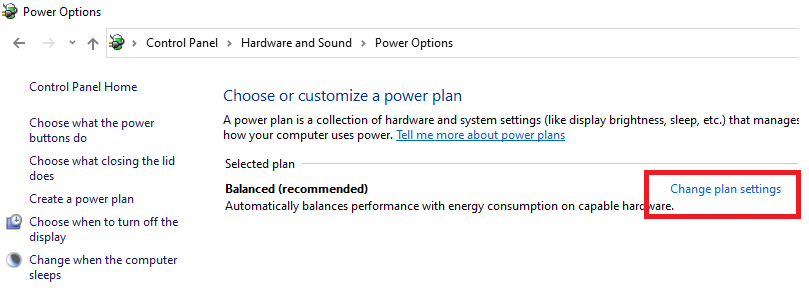
Click “Power options”.
STEP 5:
Then click “change plan settings”.
STEP 6:
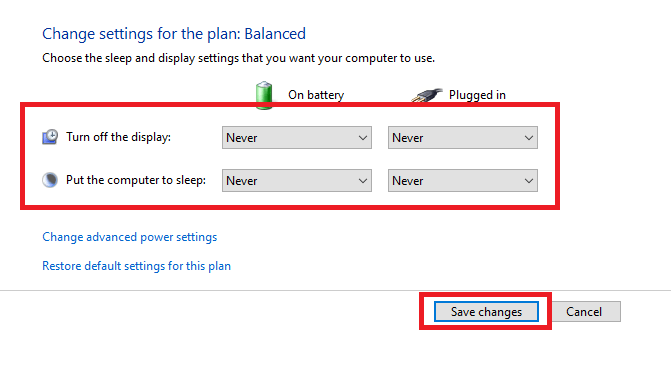
In editing the plan setting, put “never” in Turn off the display on battery and on Plugged in, and put “never” in Put the computer to sleep on battery and on plugged in and hit “save changes”.
STEP 7:
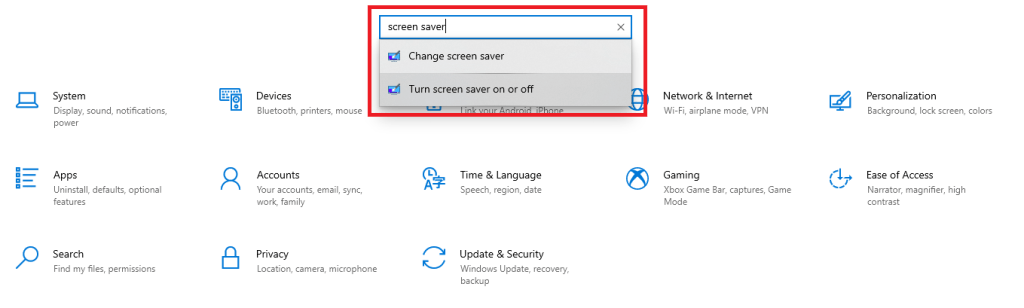
Go back to settings and search for screen saver.
STEP 8:
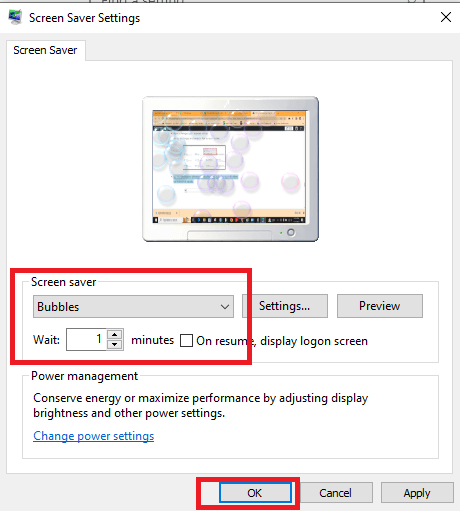
For screen saver, choose bubbles and put 1 minute for the wait and hit apply.
TOP TRACKER GUIDELINES FOR WORK IS LIFER
- Before start tracking, open your tracker and check your previous shift if the Top Tracker tracked your shift well and if not, inform immediately at your designated group chat.
- Clean your desktop before turning on the Top Tracker.
- Open Top Tracker once you sign in with your client and in Work is Lifer messenger group chat.
- Click “start tracking” and write in the description the date today and signing in .
- When you take your break, stop the Top Tracker by clicking “stop tracking”.
- If you are back from break, make sure to turn on again the Top Tracker and put the date of your shift and back from break.
- If you forgot to turn on your Top Tracker, inform the team by sending a message in Work is Lifer group chat.
- After your shift, turn off your Top Tracker.
- Every 15th and 28th day of the month, check Top Tracker for updates.
CONSEQUENCES OF NOT TURNING ON YOUR TOP TRACKER IN WORK IS LIFER
1st offense – Warning
2nd offense – Warning
3rd offense – Warning
4th offense – Warning
5th – PENALTY
Important Note: This also includes unrelated screenshots, consecutive screenshots showing your idle time and strictly no deleting of screenshots. Mouse clicks and keyboard clicks are necessary as well to justify your track hours.
CHARACTERISTICS OF A DESKTOP BACKGROUND
Background (also known as a desktop wallpaper, desktop background, desktop picture or desktop image on computers) is a digital image (photo, drawing etc.) used as a decorative background of a graphical user interface on the screen of a computer, smartphone or other electronic device. On a computer, wallpapers are generally used on the desktop, while on a mobile phone they serve as the background for the home screen. Though most devices come with a default background image, modern devices usually allow users to manually change the background image.
- It’s simple.
- It can inspire you.
- It makes you feel better when you hop on your computer.
- It motivates you to do something awesome.
- It allows you to easily read icon names on your desktop.
- High Resolution – No one likes to see your image repeated or zoomed in so far that the pixels are distinguishable.
Note: You may create your own desktop background, just add the logo of Virtual Professionals on the image. After that, ask your Team Leader for approval.
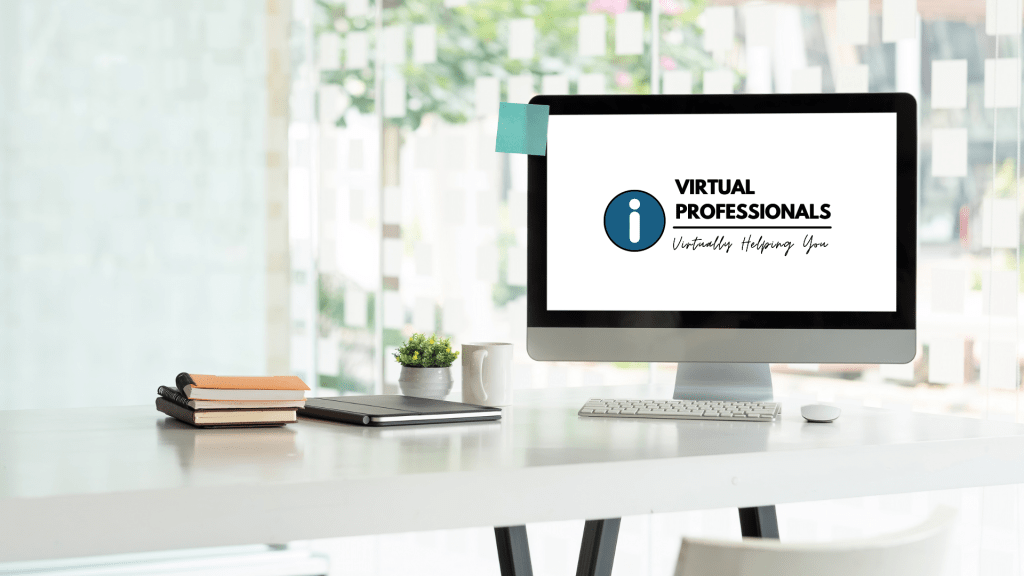
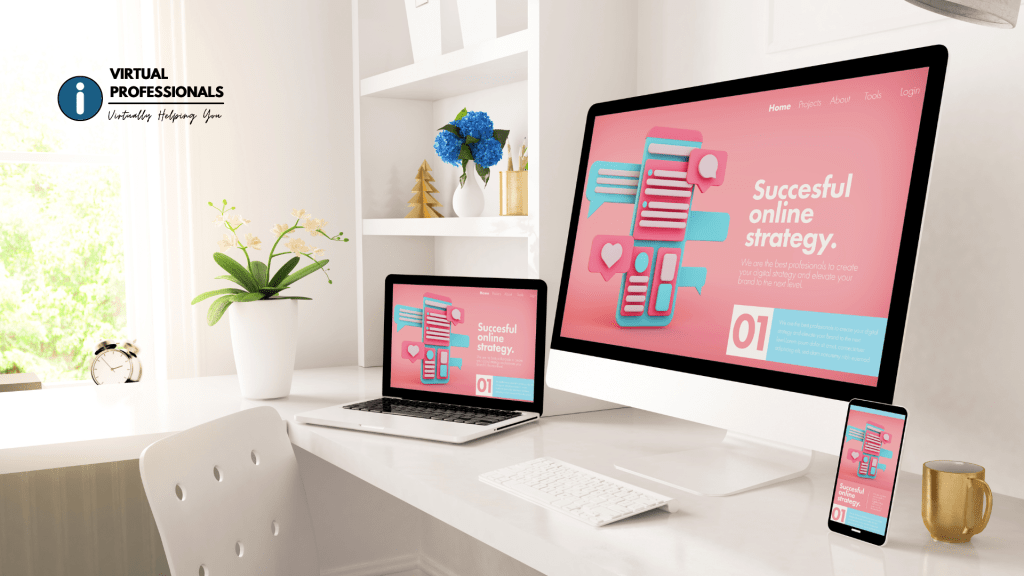
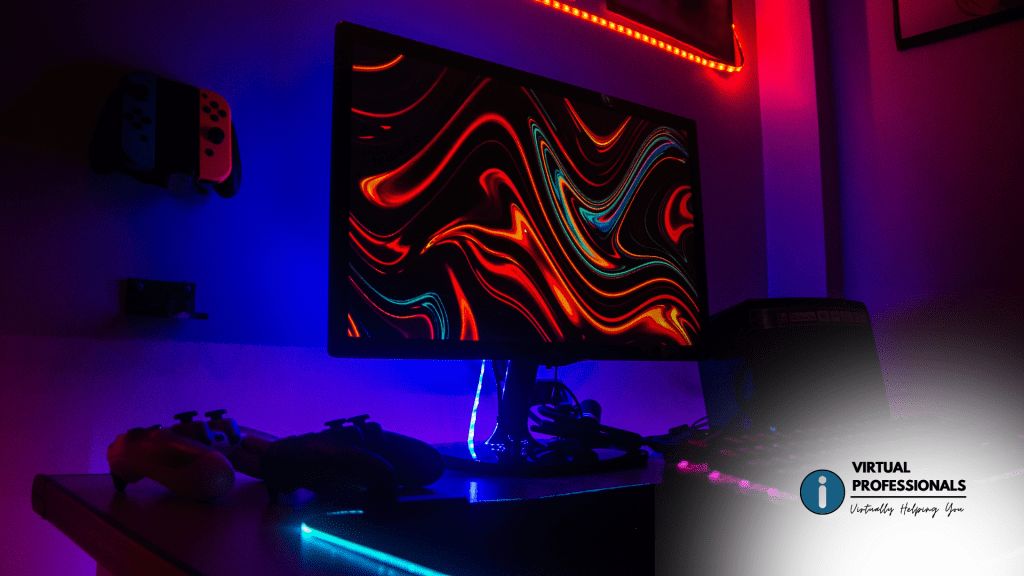
SUGGESTED DESKTOP BACKGROUND FOR VIRTUAL PROFESSIONALS or you may click here for more background or create one and have VP ADMINS approved it.


 Virtual Professionals